Disclaimer: The information posted in this blog and on this website are not necessarily reflective of the views or recommendations of Microsoft. Though I am an employee of Microsoft, this is considered a personal project of mine that is not intended to be a recommendation or guide from Microsoft the company. I take no responsibility for any results this script may yield. Please use any scripts in this blog with your discretion and perform necessary testing.
Introduction
In this blog I will be detailing a PowerShell module I wrote, MDE Kit, which has many use cases that will automate and empower your investigation, detection, prevention, and response to threats in Microsoft Defender for Endpoint (MDE). In this module, I have included my machine actions function, which I previously blogged about here: Take Response Actions on MDE Devices with PowerShell
I have also included a number of “Getter” type functions which allow you to quickly generate reports using data from MDE pertaining to alerts, machines, recommendations, vulnerabilities, antivirus, configuration assessments, and software inventory.
Notes Before Getting Started
Using the MDE API, you will require permissions to be assigned to your application (this PowerShell module). There are a number of ways to handle this. To set this up, you will need to follow the instructions found here: Create an app to access Microsoft Defender for Endpoint without a user and assign the following permissions in order for each feature in the module to function properly:
| Permission type | Permission | Permission display name |
|---|---|---|
| Application | Machine.Read.All | ‘Read all machine profiles’ |
| Application | Machine.ReadWrite.All | ‘Read and write all machine information’ |
| Application | Machine.CollectForensics | ‘Collect forensics’ |
| Application | Machine.Isolate | ‘Isolate machine’ |
| Application | Machine.LiveResponse | ‘Run live response on a specific machine’ |
| Application | Machine.RestrictExecution | ‘Restrict code execution’ |
| Application | Machine.Scan | ‘Scan machine’ |
| Application | Machine.Offboard | ‘Offboard machine’ |
| Application | Machine.StopAndQuarantine | ‘Stop And Quarantine’ |
| Application | Vulnerability.Read.All | ‘Read Threat and Vulnerability Management vulnerability information’ |
| Application | Software.Read.All | ‘Read Threat and Vulnerability Management software information’ |
| Application | Alert.Read.All | ‘Read all alerts’ |
| Application | Alert.ReadWrite.All | ‘Read and write all alerts’ |
| Application | SecurityRecommendation.Read.All | ‘Read Threat and Vulnerability Management security recommendation information’ |
Again, those are the permissions needed for *all* of the features of this module. If you wish to pick and choose which features you’d like to use, you can certainly omit some of these permissions.
At this time, I really want to highlight that there are many ways to handle authentication I strongly encourage you take the time to implement a safe way to handle authentication if you plan on using this module in any enterprise scenario. Application context is used in this module with the tenant ID, application ID, and application secret in plaintext initially for ease of demonstration and testing purposes.
As an example of a potentially safer way to handle permissions, Azure Key Vault can be leveraged to store secrets and require authentication when attempting to access them. More on that found here: Quickstart: Set and retrieve a secret from Azure Key Vault using PowerShell – In the MDE Toolkit PowerShell module, you will need to modify the Set-AccessToken function accordingly.
Getting Started
You can find the MDE Kit PowerShell module in my GitHub here: MDE Kit
You can read more about each function in the ReadMe: MDE Kit ReadMe
I chose to keep the module to just a .psm1 file and a .psd1 file rather than separating each function into its own .ps1 file. To get started, you will simply need to update the “Set-AccessToken” function at the top of the .psm1 file with your authentication details such as tenant ID, application ID, and application secret.
Assuming you’ve followed the steps above and assigned the appropriate permissions, you should be able to import the module and begin using any of the functions via command line.
Examples
In addition to being able automate many response actions on machines, MDE Kit can also be used to easily generate reports from MDE data. As an example, I’ve generated a report using the Get-SecureConfigAssessment cmdlet. Below is a sample from the report.
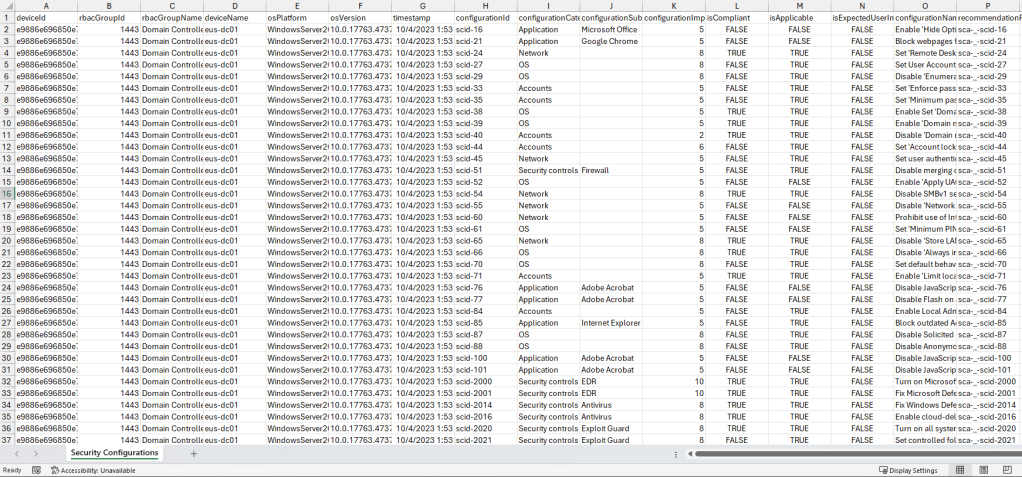
Note, with any of the “Get” cmdlets in MDE Kit, you can specify any of the properties in the corresponding API documentation as parameters. For example, If I wanted to narrow the above report down to only show configuration assessment data for Windows 10 and 11 machines with “Adobe Acrobat” as the subcategory, I can enter the following PowerShell command line:
Get-SecureConfigAssessment -OsPlatform 'Windows10','Windows11' -ConfigurationSubcategory 'Adobe Acrobat'Similarly, if I want to generate a report for Windows 10 and 11 machines with outdated or unknown antivirus platform versions, I can enter the following PowerShell command line:
Get-AvInfo -OsPlatform 'Windows10','Windows11' -AvIsPlatformUpToDate 'False','Unknown'Examples for each cmdlet can be found in the ReadMe or by using the Get-MdeKitHelp cmdlet after importing the module.
Closing Notes
Thanks so much for reading! I hope you enjoyed reading and learning more about this project. MDE Kit is a personal project I created to learn more about the available MDE APIs. MDE Kit can potentially help you automate taking response actions on machines in bulk and easily generate reports using MDE data.
MDE Kit is by no means, all encompassing, because there are additional MDE APIs, M365 Defender APIs, and MS Graph Security APIs, however I wanted to publish this project just to make it available for others. If you wish to contribute to the project, please feel free to raise an issue or create a pull request.
If you enjoyed this blog, please take the time to review my other blog posts and consider subscribing to be notified when new blogs are published (plus it’s free).
 Security Occupied
I’m getting the below error:
Invoke-WebRequest : The remote server returned an error: (403) Forbidden.
At C:tempMDE2.psm1:204 char:19
~~~~~~~~~~~~~eption
ConvertFrom-Json : Cannot bind argument to parameter ‘InputObject’ because it is null.
At C:tempMDE2.psm1:205 char:38
~~~~JsonCommand
Thoughts?
LikeLike
This error is attempting to reach the following API https://learn.microsoft.com/en-us/defender-endpoint/api/get-assessment-software-inventory which requires the following permissions:
Software.Read.All (Read Threat and Vulnerability Management software information) in application context
or
Software.Read (Read Threat and Vulnerability Management software information) in user context.
Ensure your application has those permissions assigned by following the steps from https://learn.microsoft.com/en-us/defender-endpoint/api/exposed-apis-create-app-webapp?view=o365-worldwide
You can check the permissions of your token by copying the value of the $token variable from the script into here: https://jwt.io/ and you’ll see the permissions under “roles”.
LikeLike
Thank you for this piece of work, it’s simply awesome.
The only thing that I added on my own is link the CredentialManager module and manage the access to the secrets from there to avoid hardcode the secrets on the file.
I’m just an afficionado, and could not find a better way to avoid expose that info, but
LikeLike