
Disclaimer: The information posted in this blog and on this website are not necessarily reflective of the views or recommendations of Microsoft. Though I am an employee of Microsoft, this is considered a personal project of mine that is not intended to be a recommendation or guide from Microsoft the company. I take no responsibility for any results this script may yield. Please use any scripts in this blog with your discretion and perform necessary testing.
In an attempt to learn more about the Microsoft Defender for Endpoint (MDE) API available for investigative actions on machines, I have created a PowerShell script that can perform several machine actions for single devices and also in bulk.
These machine actions include:
– Collecting investigation packages
– Isolating/unisolating
– Live response commands
– Restricting/unrestricting non-Microsoft signed applications
– Running antivirus scans
– Offboarding from MDE
– Stopping and quarantining files
– Cancelling pending actions
– And also obtaining machine data output into CSV format
The script can be found in my GitHub here: https://github.com/JeffMichelmore/M365D-API
In this blog, I will briefly detail a bit about how to set it up and use it.
How to Set it Up
This script uses Tenant ID, App ID, and App Secret in plaintext in the script for authentication. This is just for simplicity and demonstration sake, but you can use other authentication methods as described in Microsoft public documentation here:
Access the Microsoft Defender for Endpoint APIs
For instructions registering an application and using Tenant ID, App ID, and App Secret, follow the steps in this Microsoft public doc:
Create an app to access Microsoft Defender for Endpoint without a user
Then paste your Tenant ID, App ID, and App Secret into the script where the 0’s are currently at (pictured below).

To use all of the features in this script you will need the following permissions applied to your application:
| Permission type | Permission | Permission display name |
|---|---|---|
| Application | Machine.Read.All | ‘Read all machine profiles’ |
| Application | Machine.ReadWrite.All | ‘Read and write all machine information’ |
| Application | Machine.CollectForensics | ‘Collect forensics’ |
| Application | Machine.Isolate | ‘Isolate machine’ |
| Application | Machine.LiveResponse | ‘Run live response on a specific machine’ |
| Application | Machine.RestrictExecution | ‘Restrict code execution’ |
| Application | Machine.Scan | ‘Scan machine’ |
| Application | Machine.Offboard | ‘Offboard machine’ |
| Application | Machine.StopAndQuarantine | ‘Stop And Quarantine’ |
More information about each specific machine action API including the required permissions and their properties can be found here:
MachineAction resource type
Public documentation for each action is also linked throughout the script comments in corresponding sections.
How to Use it
Finally, you have set up your application with the correct permissions and you are ready to run the script! I feel that it is very straight forward, though I’ll use this opportunity to briefly describe how the script is used.
The script is menu-driven, so once you run it and authenticate successfully, you will be given this simple menu.

From there you can obviously press whatever number corresponds with the action you’d like to take. Option 1 “Output All Machine Info to CSV” is a bit different from the rest, because it is not technically a machine action API call, it is actually using the List Machines API to output your MDE machine data to a CSV file. For this, you will just need to specify the name and file location of the CSV to be created, then the script will create it and open it for you.
Option 9 “Cancel a Machine Action” is also slightly different from the other machine actions, because it does not take Machine IDs as input, instead it takes Machine Action ID. Whenever you make a machine action such as isolating a device, you will be given a Machine Action ID.
The other actions are all mostly the same. Upon choosing an action, you will be prompted to either input a single Machine ID or the file path to a CSV file containing Machine IDs. The CSV file should have a column titled “Device ID” or “id”. Both exporting a CSV from the MDE portal and using this script to create a CSV file will automatically fulfill this requirement.
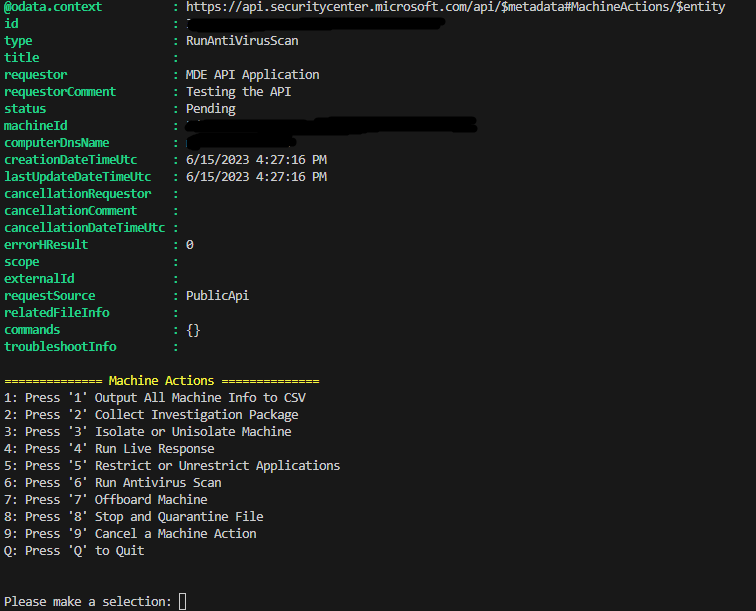
After specifying the Machine ID(s), you will be prompted to enter any other required information needed for the API call such as a comment or antivirus scan type, isolation type, etc. depending on the specific API call. Then the API call(s) will be made and the response whether successful or not will be displayed back into the script window and you’ll be brought back to the main menu (pictured below).
Thanks for reading! Hopefully, you’ve enjoyed this and perhaps can find the script useful in some way. Feel free to connect with me on LinkedIn or raise an issue in the GitHub. If you enjoyed this post, you may enjoy my blog post on Advanced Hunting with the M365 Defender API or my post on Creating Custom MDE Alert Email Reports with Power Automate.
 Security Occupied
Good one!
LikeLike
I’m getting the below error
Invoke-WebRequest : The remote server returned an error: (403) Forbidden.
At C:\Temp\MDE.psm1:204 char:19
+ … ebRequest = Invoke-WebRequest -Method Get -Uri $Url -Headers $headers …
+ ~~~~~~~~~~~~~~~~~~~~~~~~~~~~~~~~~~~~~~~~~~~~~~~~~~~~~~~~~
+ CategoryInfo : InvalidOperation: (System.Net.HttpWebRequest:HttpWebRequest) [Invoke-WebRequest], WebException
+ FullyQualifiedErrorId : WebCmdletWebResponseException,Microsoft.PowerShell.Commands.InvokeWebRequestCommand
ConvertFrom-Json : Cannot bind argument to parameter ‘InputObject’ because it is null.
At C:\Temp\MDE.psm1:205 char:38
+ $Content = $WebRequest.Content | ConvertFrom-Json
+ ~~~~~~~~~~~~~~~~
+ CategoryInfo : InvalidData: (:) [ConvertFrom-Json], ParameterBindingValidationException
+ FullyQualifiedErrorId : ParameterArgumentValidationErrorNullNotAllowed,Microsoft.PowerShell.Commands.ConvertFromJsonCommand
Thoughts?
LikeLike